When you first get to getregal.com, to do any more than browsing and adding items to the cart, you will need to sign in.
To sign in, you will need to request an account to be setup with Regal.
Signing In
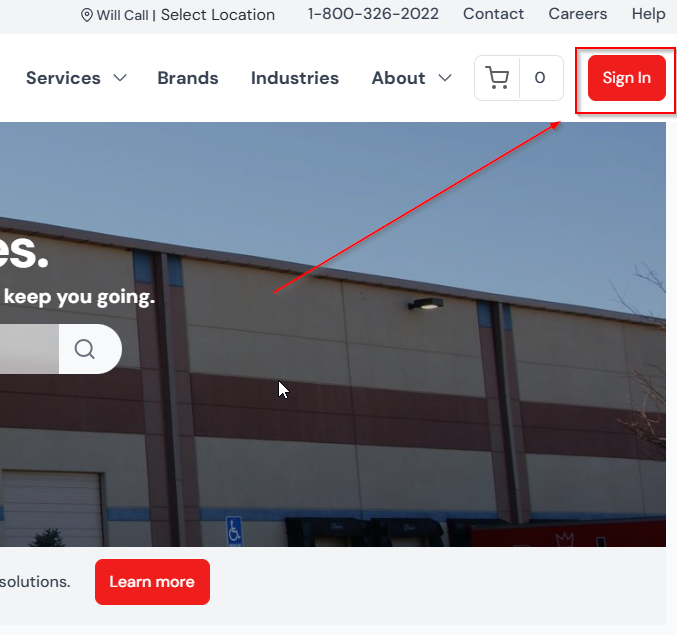
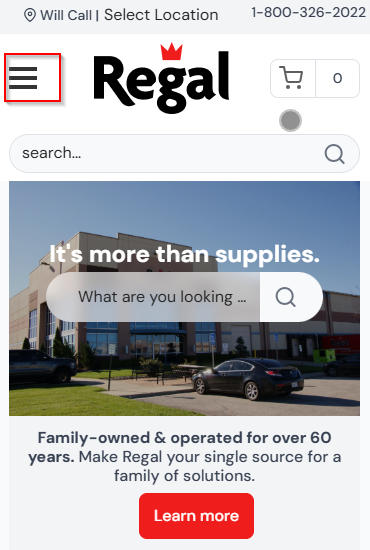
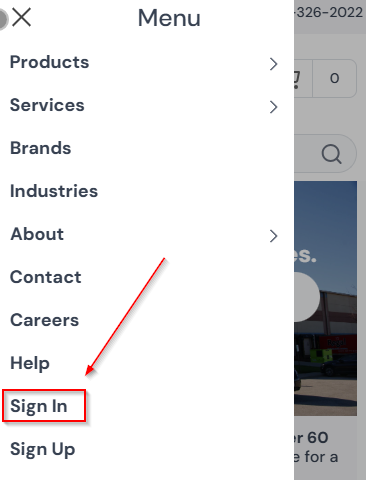
If you already are a customer and have an e-commerce account, click the “Sign In” button on your screen. On mobile, click the hamburger button on the top left (the three horizontal lines) and then click “Sign In”.
You will see the sign in window pop up:
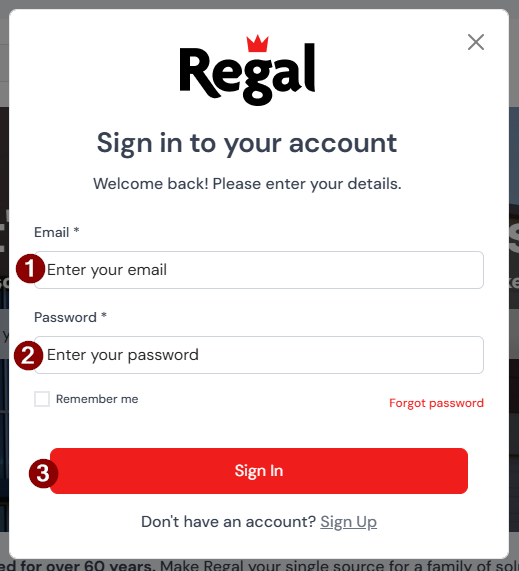
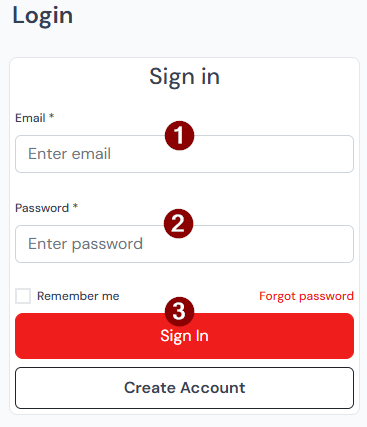
Enter your email address (1), password (2), and then click “Sign In” (3).
On mobile, do the same thing:
Existing Regal Customer Requesting New E-Commerce Account
If you are already a Regal customer, but need an e-commerce account setup, you need to go through the existing customer “Sign Up” form. First, click the “Sign In” button.
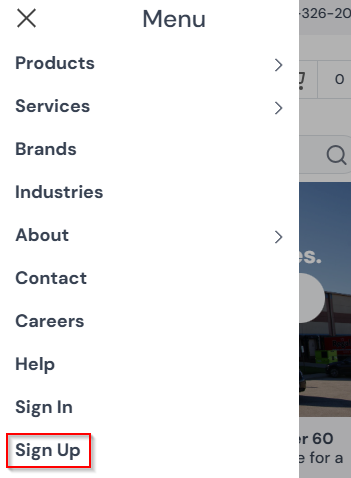
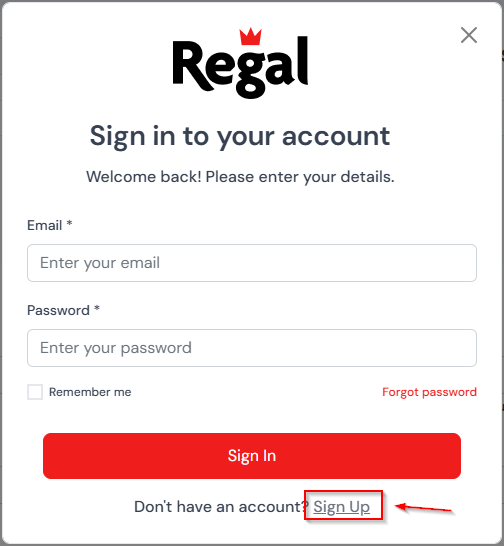
On the “Sign In” pop-up, click “Sign Up” near the bottom. On mobile, click “Sign Up”:
On the following form, ensure the “I am a current Customer but need an online account” is clicked:
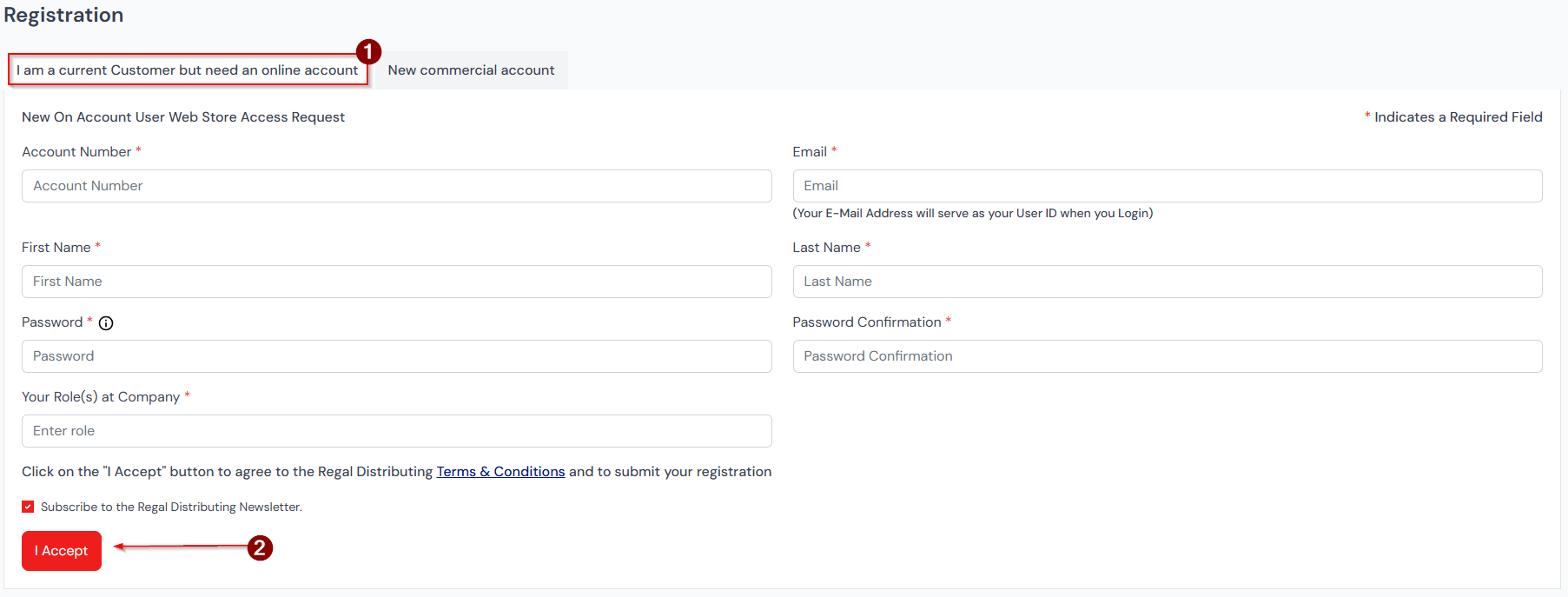
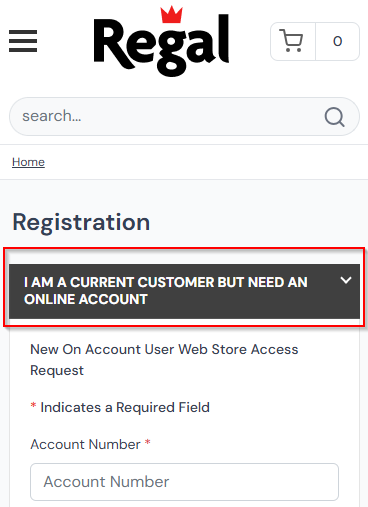
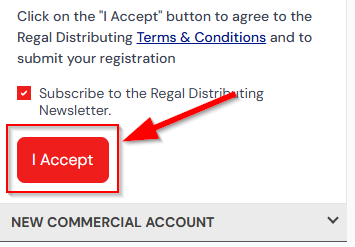
Fill out the the form and click “I Accept”.