http://www.getregal.com has a unique Order Guide for each customer. This is your living, breathing “catalog” you can easily order from.
Depending on how your sales rep has configured your account, the order guide shows items you have ordered and been quoted, or it can show a static, curated list of items for your business.
Accessing your Order Guide
There are three places to access your order guide.
Your User Menu
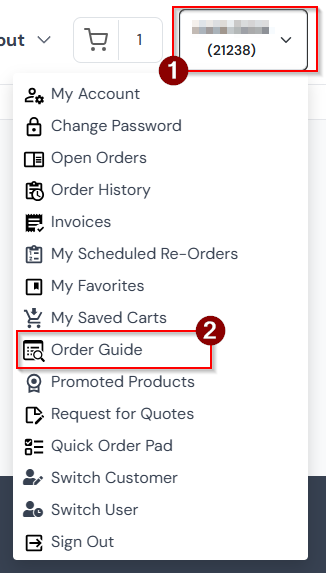
On the top right of your window, the button with your name and account number (1) can be dropped down into a list of user actions. “Order Guide” is one of them (2):
The Product Page
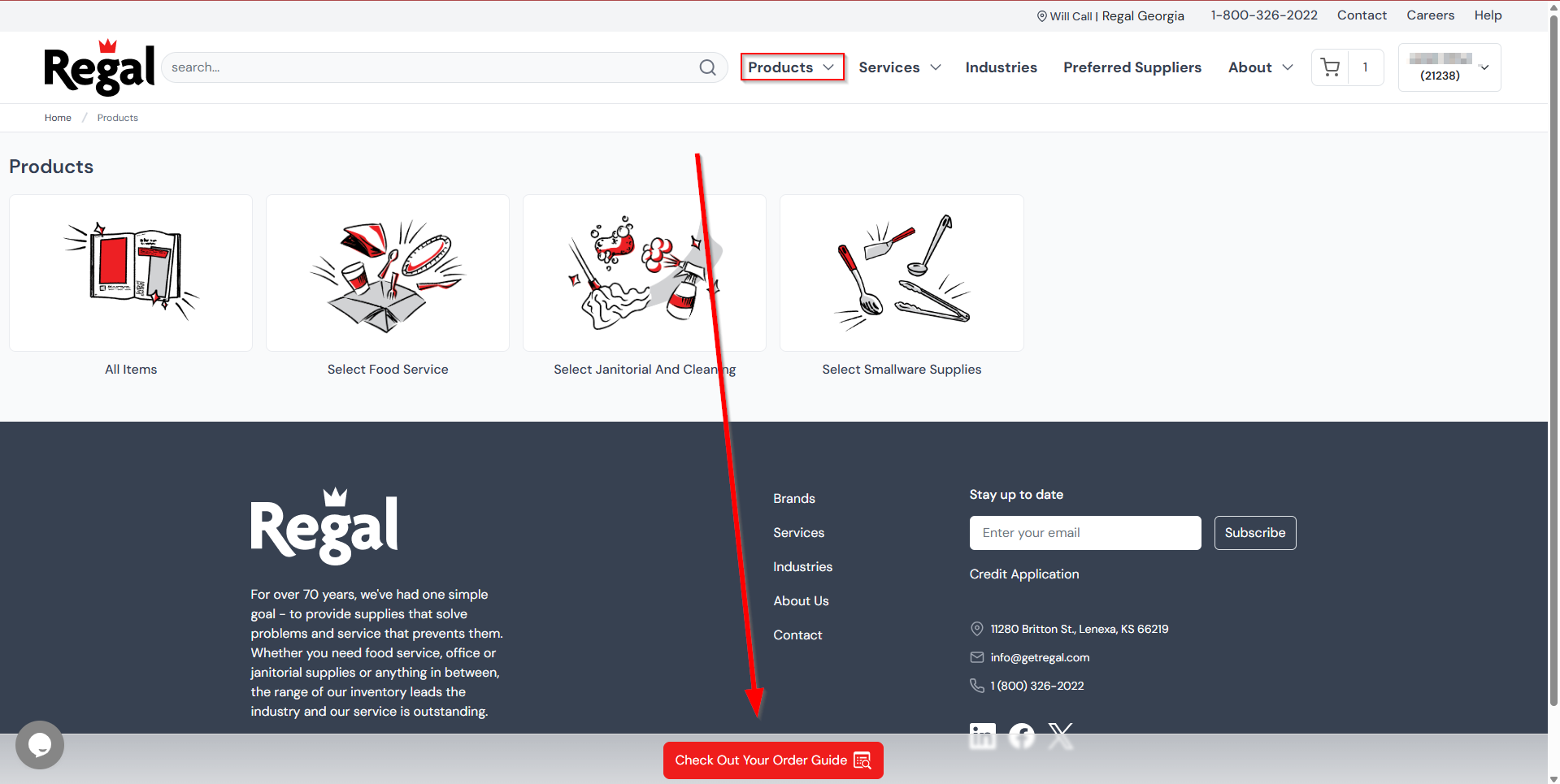
As soon as you sign in or if you click “Products”, a large button will appear on the bottom of your window, saying “Check Out Your Order Guide”:
The Home Page
If you go to www.getregal.com or click the “Regal” logo in the top of your window, you will be brought to the home page. When signed in, you will see the “Order Guide” button below the search banner:
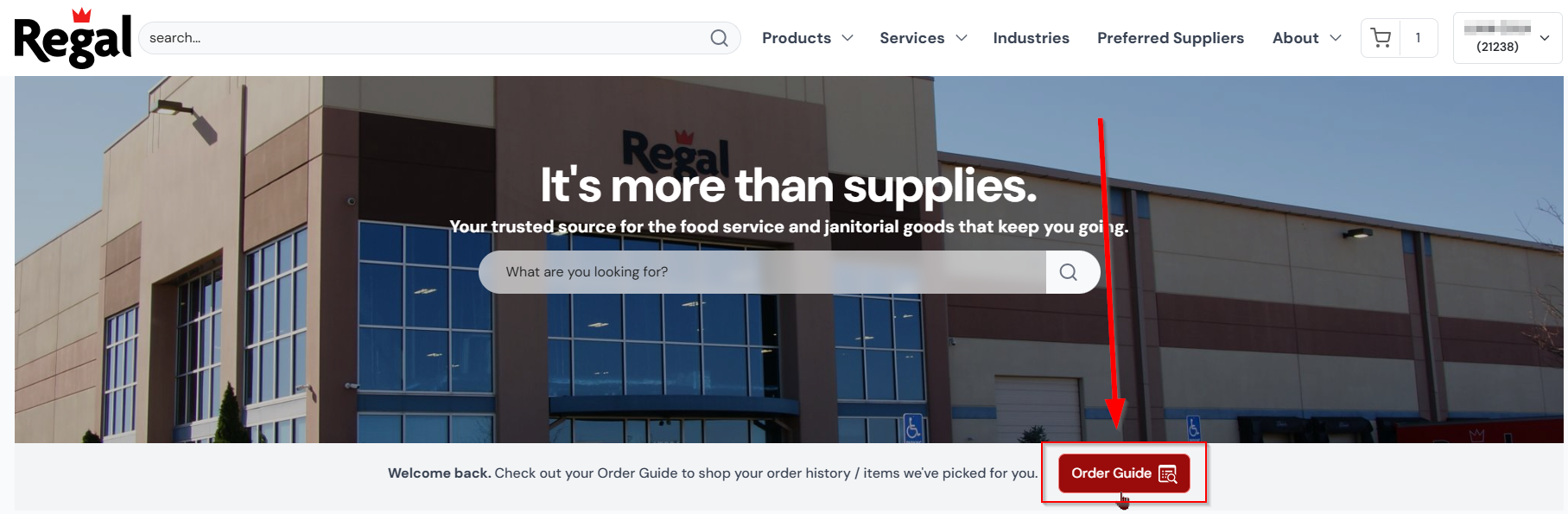
Ordering from your Order Guide
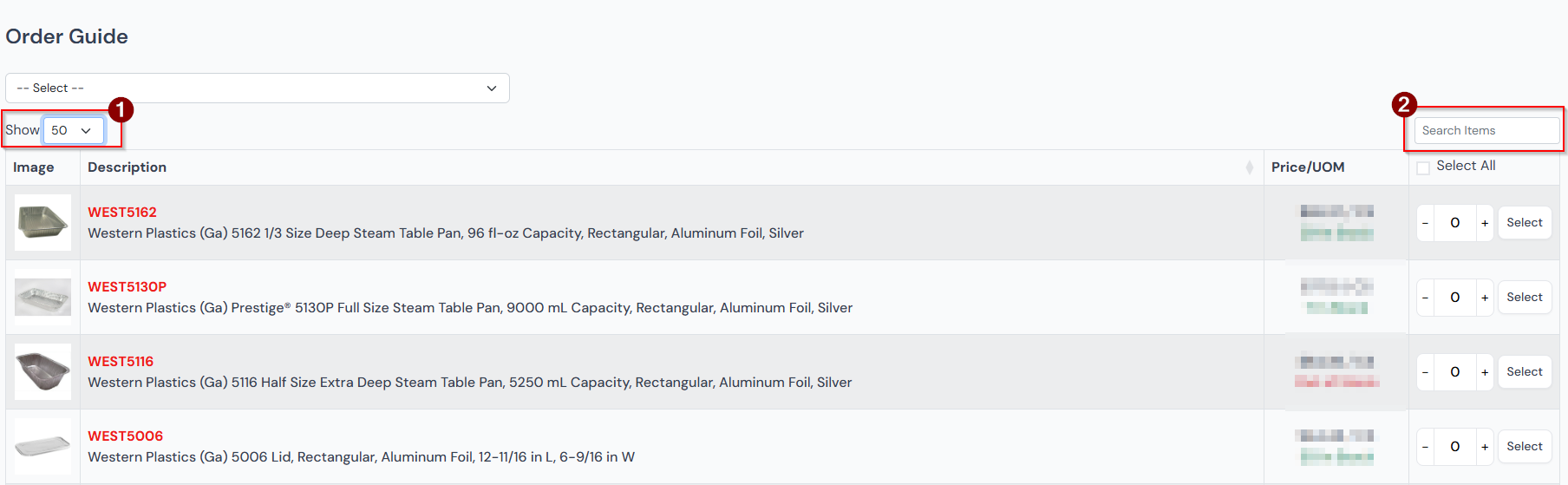
Your Order Guide is a list of items, separated into pages:
You can switch how many items are on each page (1). You can search for an item on any page of your Order Guide (2).
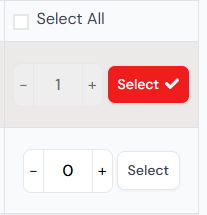
Each item allows you to enter a quantity and “select” it. Selecting an item adds the item and the quantity to your selected items list.
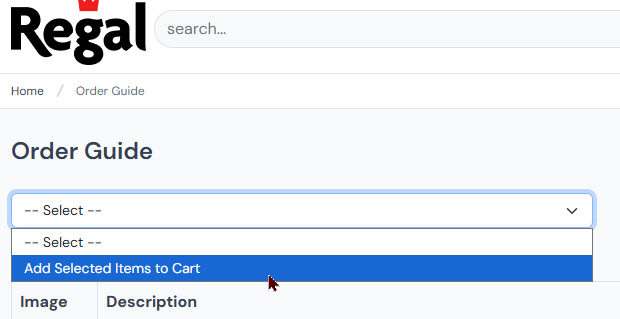
Once you have all the items selected, click the “Add x selected item(s) to cart.” button:

You can also drop down the select options and add them to your cart from there:
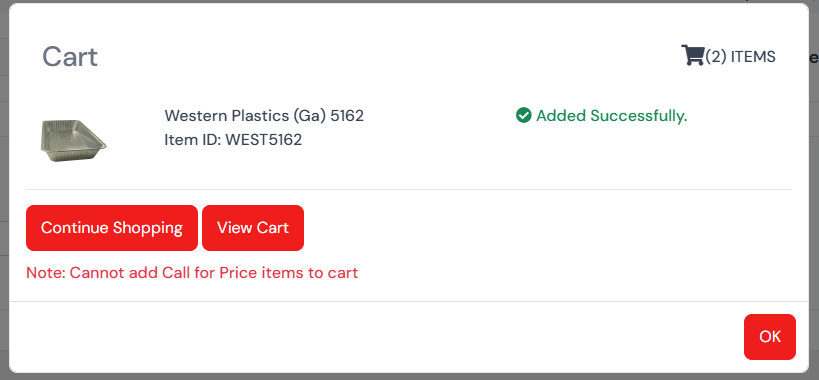
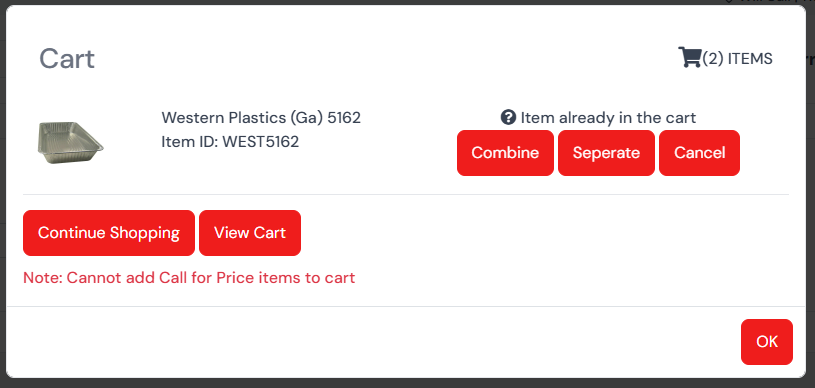
When you add items to your cart, it will pop up with a success message for each item. If any of the items you added to your cart already are in your cart, you will be prompted to either combine the quantities, add a separate line with the item, or to cancel: